
Table of Contents
A printer printing blank pages is almost always telling you that ink or toner isn’t reaching the paper, and most of the time the reason is boring and fixable in a few minutes: a strip of protective tape left on a new cartridge, an empty or nearly empty cartridge, clogged print head nozzles, or a driver that’s sending the printer an empty job. Paper feeds, the motor whirs, and nothing lands on the sheet. Before you buy a new cartridge or a new printer, work through the checks below in order. They start with the quick, free fixes and only get to repairs once the easy suspects are ruled out.
Why is my printer printing blank pages?
Your printer is printing blank pages because something between the file and the paper has broken down. That “something” falls into one of four groups:
- Supplies: the cartridge is empty, still sealed, or not seated properly.
- Print head: dried ink has blocked the nozzles, so the head fires but nothing comes out.
- Software: the driver, print queue or the document itself is sending a job with no printable content.
- Paper and settings: the wrong paper type, the wrong side, or a setting mismatch stops ink from showing up properly.
The pattern of the blank pages tells you a lot. Use this as a shortcut:
| What you’re seeing | Most likely cause |
|---|---|
| Blank right after installing a new cartridge | Protective tape or seal still on |
| Prints got fainter for weeks, then went fully blank | Clogged nozzles or empty ink |
| Only one color is missing | That cartridge or its nozzles |
| The printer’s own test page prints fine, but your files come out blank | Driver, app or the document |
| Laser printer suddenly blank with a fresh toner | Toner seal, drum or transfer roller |
Is the problem the printer, the document or the computer?

The fastest way to find out is to take the computer out of the equation. Print a test page or a nozzle check pattern straight from the printer’s control panel (or from the maintenance menu in the HP Smart, Epson or Canon app). If that page comes out blank too, the fault is in the printer: cartridges, print head or hardware. If the test page prints fine, the printer is healthy and the problem is on the software side.

Two more quick tests are worth the 30 seconds:
- Open Notepad (or TextEdit on a Mac), type one sentence and print it. If that works but your original document doesn’t, the file is the issue.
- Print the problem document to PDF instead of to the printer. If the PDF is blank, the document really is empty, or it uses white text, a hidden layer or a font that isn’t rendering.
Also check the obvious one. If you have more than one printer installed, make sure the job is going to the right one. A job sent to an offline or “fax” printer won’t come out at all, and people sometimes mistake that for a printer not printing anything.
What should you check first after installing a new cartridge?
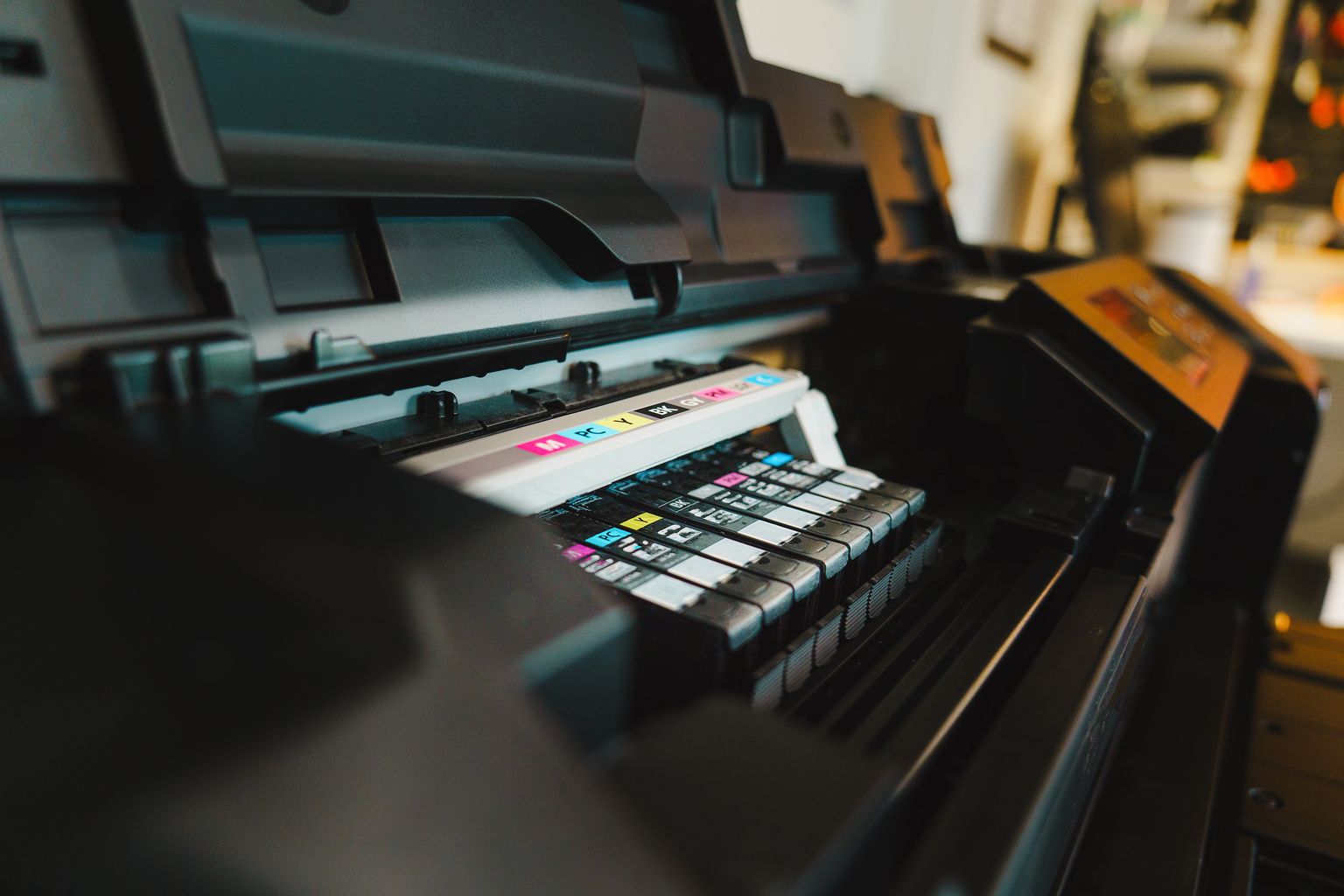
Check the tape. New ink cartridges ship with protective tape over the nozzles or the air vent, and laser toner cartridges often have a long pull-tab seal. If any of it is left on, the printer goes through the motions and feeds a clean sheet. Canon’s own troubleshooting page for blank paper tells you to remove the orange tape and protective film so the Y-shaped air hole is exposed, because a covered vent stops ink from flowing.
Take each cartridge out, look closely at the nozzle face and the top label, peel off any remaining tape (without touching the copper contacts or the nozzles), and push it back in until it clicks. A cartridge that isn’t fully seated can’t make good contact, and some printers will quietly print blank rather than throw an error.
While the cartridges are out, check the levels. Low supplies are the single most common cause on HP’s own guide to troubleshooting a printer that’s printing blank pages. Ink level gauges are estimates, so a cartridge that reads “25%” can still be empty in practice, especially if it’s a refilled or third-party one the printer can’t read properly.
Why does a printer have ink but still print blank pages?
If your printer has ink but prints blank pages, the nozzles on the print head are usually clogged. Inkjet nozzles are tiny, and when a printer sits unused for a few weeks the ink at the tip dries into a plug. The head still moves across the page and fires, but no ink gets through. This is the classic “it was getting faint, now it’s totally blank” situation.
Run a nozzle check, then a head cleaning
Every inkjet has a built-in cleaning cycle in the printer menu or the companion app. Print a nozzle check first so you can see which colors are missing, then run one cleaning and check again. Don’t keep hammering the button, though. Each cycle burns through a fair amount of ink, and the manufacturers set limits:
- Epson says that if quality hasn’t improved after three rounds of nozzle check and head cleaning, you should stop, turn the printer off with the power button and leave it for at least 12 hours before trying again. If it’s still bad after that, Epson recommends Power Cleaning (Epson user guide).
- Canon recommends up to two standard cleanings, then a deep cleaning. If that fails, switch the printer off and run deep cleaning again 24 hours later. After two deep cleanings with no change, Canon says the print head may be damaged (Canon manual).
The overnight rest is the step people skip, and it’s often the one that works. The cleaning cycle loosens the plug, and the hours of sitting let fresh ink soak through it.
Clean the cartridge by hand if the cycle fails
If your printer uses cartridges with the print head built in (a lot of HP DeskJet and ENVY models work this way), you can take the cartridge out and gently wipe the nozzle plate with a lint-free cloth dampened with distilled water. HP specifically says distilled water, not tap water or alcohol, then let it dry for 10 to 15 minutes before reinstalling and running another cleaning. If the cartridge is old and still won’t fire after that, replacing it is cheaper than spending more ink on cleaning cycles.
Watch for air in ink tank printers
On ink tank printers (Epson EcoTank, Canon MegaTank, HP Smart Tank), letting a tank run dry can pull air into the ink lines. Refilling the tank doesn’t fix that on its own. Check your manual for an “ink charge” or “power cleaning” option that pushes ink back through the system.
How do you fix blank pages caused by drivers or software?
When the test page prints but your documents don’t, fix the software chain from the top down:
- Clear the print queue. A stuck or corrupted job can block everything behind it or come out as blank sheets. Cancel all jobs, restart the printer and the computer, and try again.
- Update or reinstall the driver. Blank pages often start right after a Windows or macOS update. Uninstall the printer and its software, restart, then install the full driver package from the manufacturer’s support site rather than the generic driver your OS picked up automatically.
- Update the firmware. HP notes that firmware updates can fix blank-page issues that a driver update doesn’t. Check the printer’s control panel or app for an update.
- Try “Print as image” for stubborn PDFs. If one PDF keeps printing blank, open it in Adobe Acrobat Reader, go to Print, then Advanced, and tick “Print as image”. This gets around fonts or graphics the printer can’t render.
- Check the print quality setting. Very low “draft” or “economy” modes can produce pages so faint they look blank on some printers.
If you print from your phone or a tablet like the Samsung Galaxy Tab S9, install the brand’s own print app instead of relying on the built-in print service. The official apps also give you the head cleaning and nozzle check tools mentioned above.
Can the wrong paper cause blank pages?
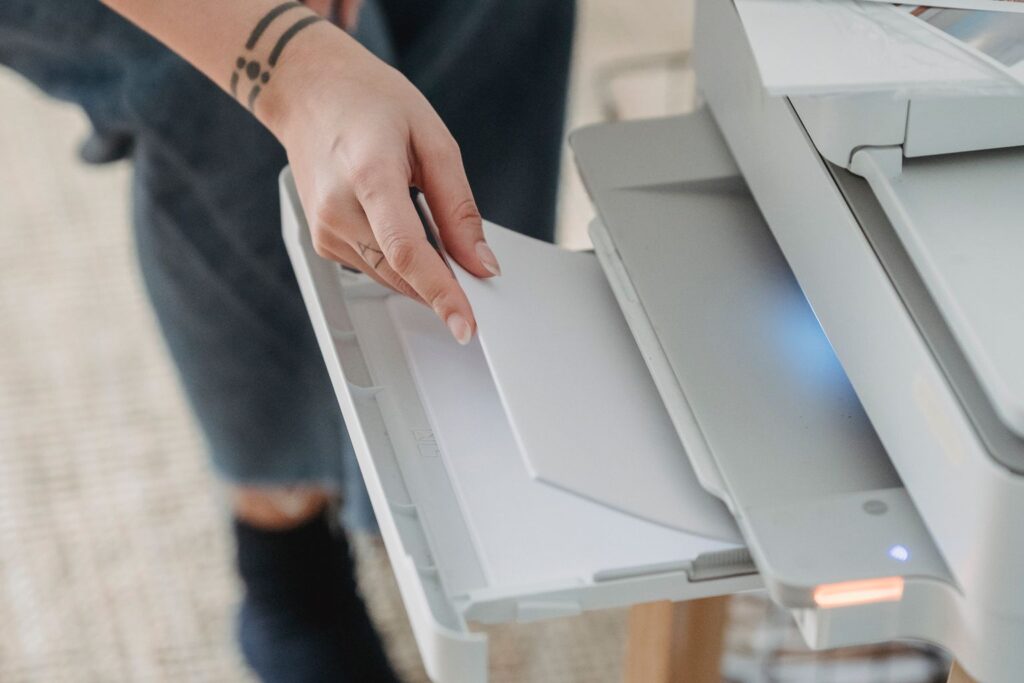
Yes, more often than people expect. If one-sided paper (photo paper, glossy or matte inkjet paper) is loaded upside down, the ink sits on the coated back and smears or wipes off, leaving what looks like a blank sheet. Load it with the printable side facing the direction your manual shows, usually marked by an icon on the tray.
A few other paper problems to rule out:
- Mismatched settings. If the driver thinks you’ve loaded photo paper and you’ve loaded plain paper (or the other way round), the printer may lay down too little ink. Match the paper type in Print > Properties to what’s actually in the tray.
- Damp or curled paper. Paper that has absorbed humidity feeds badly and takes ink poorly. Try sheets from a fresh ream.
- Thermal paper in an inkjet. Thermal receipt-style paper is made for thermal printers and won’t show inkjet ink properly.
Why is a laser printer printing blank pages?
A laser printer printing blank pages usually points to the toner cartridge or the drum rather than a clog, because toner is a dry powder that doesn’t dry out. Start with the cartridge: pull it out, make sure the sealing tape or pull-tab is completely removed, and give it a few gentle side-to-side shakes to spread settled toner evenly. Then reinstall it and print a configuration or demo page from the printer’s menu.
If you still get blank output with a fresh toner cartridge, the drum unit is the next suspect. The drum is what holds the electrical charge that attracts toner to the page. On many Brother printers the drum is a separate part from the toner, so a worn drum can cause blank or very faint pages even when the toner is new. HP also lists the transfer roller as a cause, which moves the toner image from the drum onto the paper. Both are replaceable parts, but at that point you’re getting into repair territory.
Does the fix change for HP, Epson, Canon or Brother printers?
The causes are the same across brands, but where you find the tools differs a little:
| Brand | Where to start | Worth knowing |
|---|---|---|
| HP | Clean Printhead in the HP Smart app or printer panel; check firmware in HP Smart | Many cheaper HP inkjets have the print head inside the cartridge, so a new cartridge also means a new print head |
| Epson | Nozzle Check and Head Cleaning in Epson’s utility | Stop after three rounds and rest 12 hours; use Power Cleaning only as a last step since it uses a lot of ink |
| Canon | Remove the orange tape, then print head cleaning | Two cleanings, then deep cleaning, then a 24-hour rest before deep cleaning again |
| Brother | Driver and print settings if only computer jobs come out blank | On Brother lasers, check the drum as well as the toner |
When is a printer printing blank pages worth repairing?
It’s worth repairing if the printer is still under warranty (usually one year) or if the fix is a cheap part like a cartridge or a drum. Contact the manufacturer first if it’s under warranty, since opening it up or using non-genuine parts can complicate a claim.
Out of warranty, HP’s rule of thumb is a good one: if a repair quote is more than about half the price of a comparable new printer, replacing it usually makes more sense. Signs that you’re dealing with real hardware failure include blank output after repeated cleanings or new toner and drum, flashing error lights, grinding noises, or a printer that prints blank diagnostic pages from its own menu.
How do you stop a printer from printing blank pages again?
Most inkjet blank-page problems come from printers that sit idle. A few habits keep them away:
- Print at least one page every week or two, ideally something with color in it, so ink keeps moving through the nozzles. HP recommends printing every one to two weeks.
- Turn the printer off with its power button, not at the wall socket. That gives it a chance to park and cap the print head so the nozzles don’t dry out.
- Replace cartridges before they run fully dry, especially on ink tank printers where air can get into the lines.
- Store spare paper flat and sealed so it doesn’t pick up moisture.
If you mostly print photos from your phone, it’s worth knowing that a better camera won’t save a printer with dried nozzles. Even shots from the iPhone with the best camera come out blank or streaky if the head is clogged, so a regular test print matters more than you’d think.
Conclusion
A printer printing blank pages looks like a serious fault, but the cause is usually small: tape on a cartridge, an empty tank, nozzles clogged by a few weeks of not printing, or a driver that went sideways after an update. Print a test page from the printer first, because that one step tells you whether to work on the hardware or the software. From there, clean the head patiently (with the overnight rest), reinstall the driver if your files are the problem, and only start pricing repairs when the printer’s own test page still comes out empty. For more practical fixes and buying advice on everyday gadgets, browse the latest guides on Best Electronics Guide.