

Table of Contents
Yes, you can use an iPad as a phone for most everyday calls and texts, with one catch: the iPad has no built-in cellular calling. Every call goes through one of three routes. You pair it with your iPhone, you use your carrier’s Wi-Fi Calling, or you use an internet calling app like FaceTime, Google Voice or WhatsApp.
With iPadOS 26, Apple gave the iPad its own Phone app for the first time, yet many guides to can you use an iPad as a phone still recommend Skype, which shut down in May 2025. We sorted every working method by the one question that decides your answer: do you own an iPhone?
Quick answer: Yes, but not on its own. An iPad can’t use a SIM for regular calls or texts. Pair it with your iPhone (iPadOS 26 adds a Phone app), turn on carrier Wi-Fi Calling for other devices, or use FaceTime Audio, Google Voice or WhatsApp over the internet.
Yes, as long as you have an iPhone, a carrier that supports Wi-Fi Calling, or an internet calling app.

How to Make Calls and Send Texts on an iPad: 6 Methods Compared
| Method | Needs an iPhone? | Calls regular numbers? | Texts (SMS)? | Cost |
|---|---|---|---|---|
| iPhone pairing (Calls on Other Devices + Phone app) | Yes, nearby and on the same Wi-Fi | Yes, from your iPhone number | Yes, with Text Message Forwarding | Your current phone plan |
| Wi-Fi Calling on other devices | Yes (your iPhone line), but it can be away | Yes | Check with your carrier | Your current plan, if your carrier supports it |
| FaceTime Audio | No | No, only other Apple users | iMessage only | Free over Wi-Fi or data |
| Google Voice | No | Yes, with a free US number | Yes, to US and Canada | Almost all US and Canada calls are free |
| No | No, only WhatsApp users | WhatsApp messages only | Free over Wi-Fi or data | |
| Cellular iPad SIM or eSIM alone | No | No, the plan is data only | No | Data plan only |
One app you won’t see here is Skype. Microsoft confirms that “As of May 5th, 2025, Skype is retired,” and it moved users to Microsoft Teams Free.
Can You Make Normal Phone Calls on an iPad?
Not by itself. A cellular iPad’s SIM or eSIM carries data, so it can’t place a regular voice call or receive an SMS on its own. To call a normal phone number from an iPad, you need your iPhone, carrier Wi-Fi Calling, or a calling app with its own number, like Google Voice.
On an Apple Community thread about iPad calls, the top answer puts it plainly: “An iPad with Cellular connectivity alone can only access IP-data services.” Your carrier may show a phone number for the iPad’s line, but that number exists for billing and data. Nobody can call it.
Is there a monthly fee for iPad cellular? Yes. A cellular iPad needs its own data plan or eSIM from a carrier, separate from your phone plan. That plan pays for mobile internet, which you can use for FaceTime, Google Voice or WhatsApp calls away from Wi-Fi.
Sound is the other surprise. iPads have no earpiece, so you take calls on speaker, with AirPods or other Bluetooth earbuds, or with wired headphones.
How Do You Make Calls on an iPad With Your iPhone?
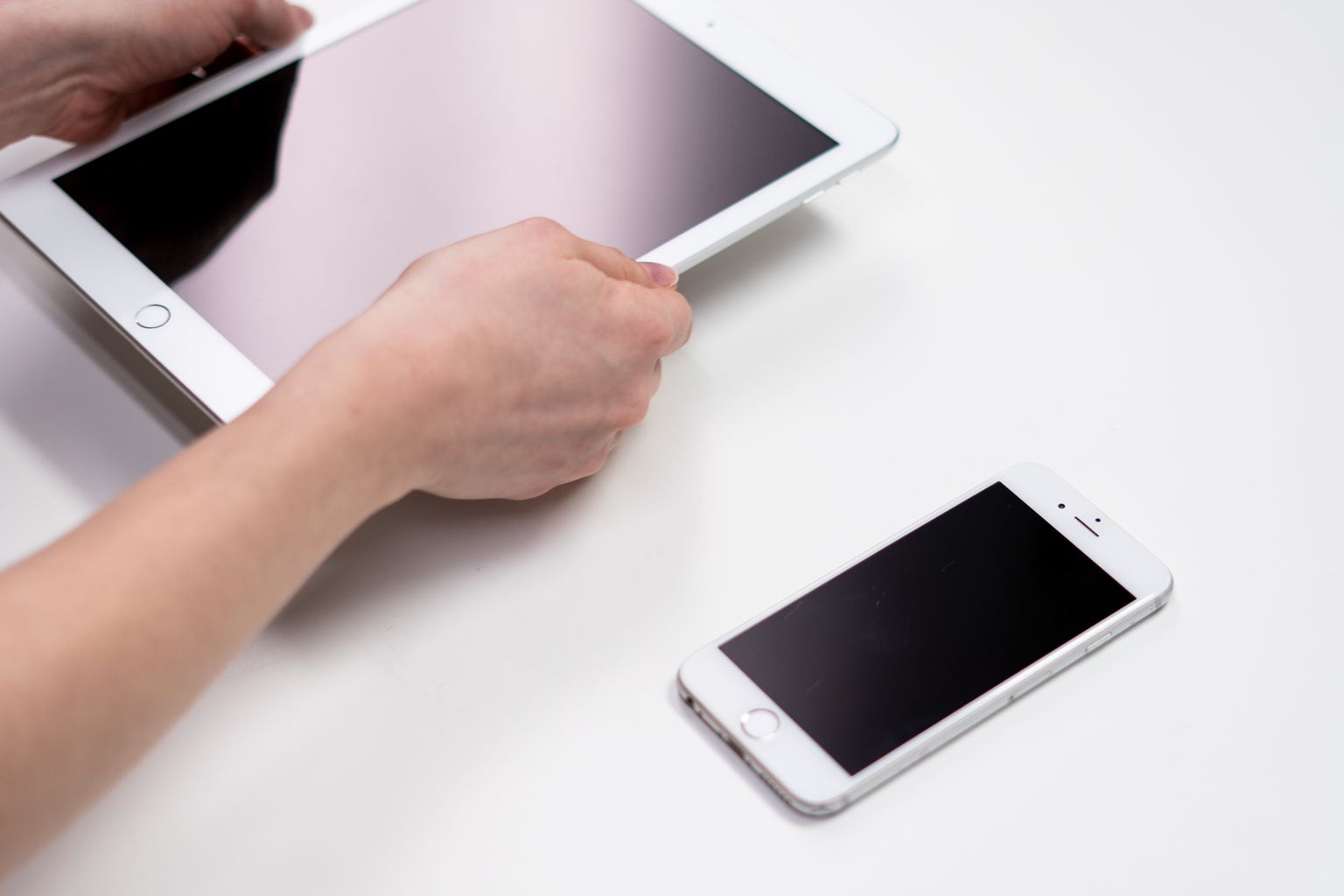
Turn on Calls on Other Devices on your iPhone and Calls from iPhone on your iPad, and the iPad rings when your iPhone does. You can then answer, decline or start calls from the iPad using your real phone number. This is the most phone-like setup, and it costs nothing extra.
Apple calls this Continuity. Your iPhone still places the call over its cellular line, and the iPad works like a wireless handset.
What You Need
Before you start, check these boxes, all taken from Apple’s guide to calls on iPad:
- An iPhone with an active carrier plan
- The same Apple Account signed in on the iPhone and the iPad
- FaceTime turned on, on both devices
- Wi-Fi on, with both devices on the same network
- Your iPhone switched on and nearby (Apple’s words are “turned on and nearby”)
How to Set Up iPhone Calls on Your iPad
On your iPhone:
- Open Settings, tap Apps, then tap FaceTime. Turn FaceTime on and select your phone number under “You can be reached by FaceTime at.”
- Go back to Settings, tap Apps, then tap Phone.
- Tap Calls on Other Devices and turn on Allow Calls on Other Devices.
- In the device list, turn on your iPad.
On your iPad:
- Open Settings, tap Apps, then tap FaceTime.
- Check that FaceTime uses the same Apple Account as your iPhone.
- Select your phone number under “You can be reached by FaceTime at.”
- Tap Calls from iPhone and turn it on.
To place a call, open the Phone app on iPadOS 26, use FaceTime, or tap any phone number in Contacts, Calendar, Messages or Safari. To move a live call back to your iPhone, tap the green bar on your iPhone.
What the iPadOS 26 Phone App Adds
The Phone app gives your iPad a proper home for calls. It shows your incoming calls, voicemails, contacts and FaceTime calls in one place, and the iPad User Guide covers call history, voicemail greetings, call forwarding and call blocking. Some of the newer iPhone call tools carry over too. Apple says Hold Assist Detection, Screen Unknown Callers, Call Filtering and Live Voicemail work on the iPad as you set them on your iPhone, in Settings > Apps > Phone.
Remember that the Phone app still runs through your iPhone line. It doesn’t give your iPad its own phone number. If you keep your iPhone on a desk charger, a MagSafe case makes it easy to drop it on the stand and leave the calls to the iPad.
Can You Use an iPad as a Phone Without an iPhone?
Yes, for internet calls. FaceTime Audio, Google Voice and WhatsApp all work on an iPad with no iPhone at all, over Wi-Fi or a cellular data plan. Calls from your own mobile number are different: for those, you need an iPhone line on your account and a carrier that supports Wi-Fi Calling on other devices.
Wi-Fi Calling on Other Devices
Wi-Fi Calling lets your iPad make and receive calls from your number even when your iPhone is somewhere else. According to Apple’s Wi-Fi Calling guide, this works “If your carrier supports Wi-Fi Calling on iCloud-connected devices.” You turn on Wi-Fi Calling and Allow Calls on Other Devices on your iPhone, then Calls from iPhone on the iPad.
The calls still use your iPhone line, and support varies by carrier, so check your carrier’s Wi-Fi Calling page first.
FaceTime Audio
FaceTime Audio is the simplest free option. It’s built into every iPad and works over Wi-Fi or cellular data. The limit is the audience: you can only call people who use an iPhone, iPad or Mac. Open FaceTime, type a name, number or email, and tap the audio button.
Google Voice
Google Voice gives you a free US phone number that works on an iPad with no iPhone. You can call and text real phone numbers from the Voice app, and almost all calls from the US to US and Canada numbers are free. A few specific numbers cost 1 cent per minute.
Google Voice for personal accounts is a US service. Some banks won’t send verification codes to internet-based numbers, so keep your main number for logins.
WhatsApp and Other Calling Apps
WhatsApp finally launched a native iPad app on May 27, 2025. It handles voice and video calls with up to 32 people, plus screen sharing, all free over Wi-Fi or data. The catch is that both people need WhatsApp, so you can’t use it to ring a landline or someone’s regular number.
Skype has been retired, so skip any guide that still suggests it.
What About Android Tablets?
Android tablets follow the same basic rule. A tablet like the Samsung Galaxy Tab S9 handles calls best through apps such as Google Voice and WhatsApp, which run the same way they do on an iPad.
How Do You Send and Receive Texts on an iPad?
iMessage works out of the box. Sign in with your Apple Account and you can text anyone who uses an Apple device, shown in blue bubbles. Regular SMS, MMS and RCS texts to Android phones are green bubbles, and those need Text Message Forwarding from your iPhone before they show up on your iPad.
To set it up, make sure iMessage is on and both devices use the same Apple Account. Then, on your iPhone, open Settings, tap Apps, tap Messages, tap Text Message Forwarding, and turn on your iPad. Your iPad will now send and receive green-bubble texts through your iPhone.
Turn on Messages in iCloud too, and your whole message history syncs across your iPhone, iPad and Mac.
No iPhone? Google Voice handles regular texts to US and Canada numbers, and WhatsApp covers messaging with other WhatsApp users. Neither one will pick up texts sent to your normal mobile number, though.
Can You Replace Your Phone With an iPad?
For most people, no. An iPad works best as a second calling device that sits on your desk or couch, while your phone stays in your pocket for everything else. Size, the lack of an earpiece and the data-only SIM make it a clumsy full-time phone.
The trade-off at a glance:
| What works well | What gets in the way |
|---|---|
| Big screen for video calls and group chats | Too big for a pocket |
| One device for work, calls and messages | No earpiece, so calls need speaker or earbuds |
| FaceTime, WhatsApp and Google Voice are free | A cellular iPad can’t make regular calls or get SMS alone |
| Phone app on iPadOS 26 feels like a real phone | Some banks won’t text codes to Google Voice numbers |
The top answer on an Apple Community thread about using an iPad mini as a phone is blunt: “An iPad alone is not, and can never be, a standalone substitute for an iPhone.”
An iPad-first setup makes the most sense at home or in an office, or for a family member who mostly uses FaceTime on Wi-Fi. If a new phone feels like the better buy, our guide to which iPhone has the best camera compares the current models.
Why Can’t I Make Calls on My iPad?
Usually a mismatched Apple Account, Wi-Fi turned off, or Calls from iPhone switched off. Most iPad calling problems come down to one setting on either device. Work through this checklist in order, and test a call after each step so you know which one fixed it.
- Check the Apple Account. FaceTime on both devices must use the same Apple Account.
- Check Wi-Fi. Both devices need Wi-Fi on and should be on the same network.
- Check the device list. On your iPhone, open Settings > Apps > Phone > Calls on Other Devices and make sure your iPad is turned on.
- Check Calls from iPhone. On your iPad, open Settings > Apps > FaceTime and confirm Calls from iPhone is on.
- Check your carrier. For calls when your iPhone is away, your carrier must support Wi-Fi Calling on other devices.
- Update and restart. Install the latest iOS and iPadOS updates, then restart both devices.
Our Verdict: Should You Use Your iPad as a Phone?
If you own an iPhone, yes. With Calls on Other Devices, Text Message Forwarding and the new Phone app, your iPad makes a great desk phone. Drop your phone plan entirely, though, and you’ll hit gaps with regular texts and bank codes. Our 3-question calling check sorts it out:
- Do you own an iPhone? Yes means Continuity covers your calls and texts.
- Does your carrier support Wi-Fi Calling on other devices? Yes means calls keep working with your iPhone away.
- Do you need your real number? No means Google Voice, FaceTime and WhatsApp cover you for free.
We built this guide at Best Electronics Guide from Apple’s support documents and official app pages; we didn’t run hands-on call tests.
FAQs
1. How do I turn my iPad into a phone?
Ans: Sign in to the same Apple Account on both devices and use the same Wi-Fi. Turn on Allow Calls on Other Devices on your iPhone and Calls from iPhone on your iPad.
2. Can I use my iPad as a phone with my SIM card?
Ans: No. iPad SIMs and eSIMs carry data only, so they can’t make regular calls or get SMS. You can use that data for FaceTime, Google Voice or WhatsApp calls.
3. How to make phone calls from iPad for free?
Ans: Use FaceTime Audio for Apple users and WhatsApp for WhatsApp users. For regular numbers, Google Voice makes almost all calls from the US to US and Canada numbers free.
4. Is there a monthly fee for iPad cellular?
Ans: Yes. A cellular iPad needs its own data plan, separate from your phone plan. It adds mobile internet only, with no calling or texting.
5. Does the iPad have a Phone app?
Ans: Yes, starting with iPadOS 26. It places and receives calls through your iPhone and shows your calls, voicemails and contacts. It doesn’t give the iPad its own number.
6. How do I separate calls from my iPhone and iPad?
Ans: On your iPhone, open Settings > Apps > Phone > Calls on Other Devices and turn off your iPad. Your iPhone keeps ringing as usual.